
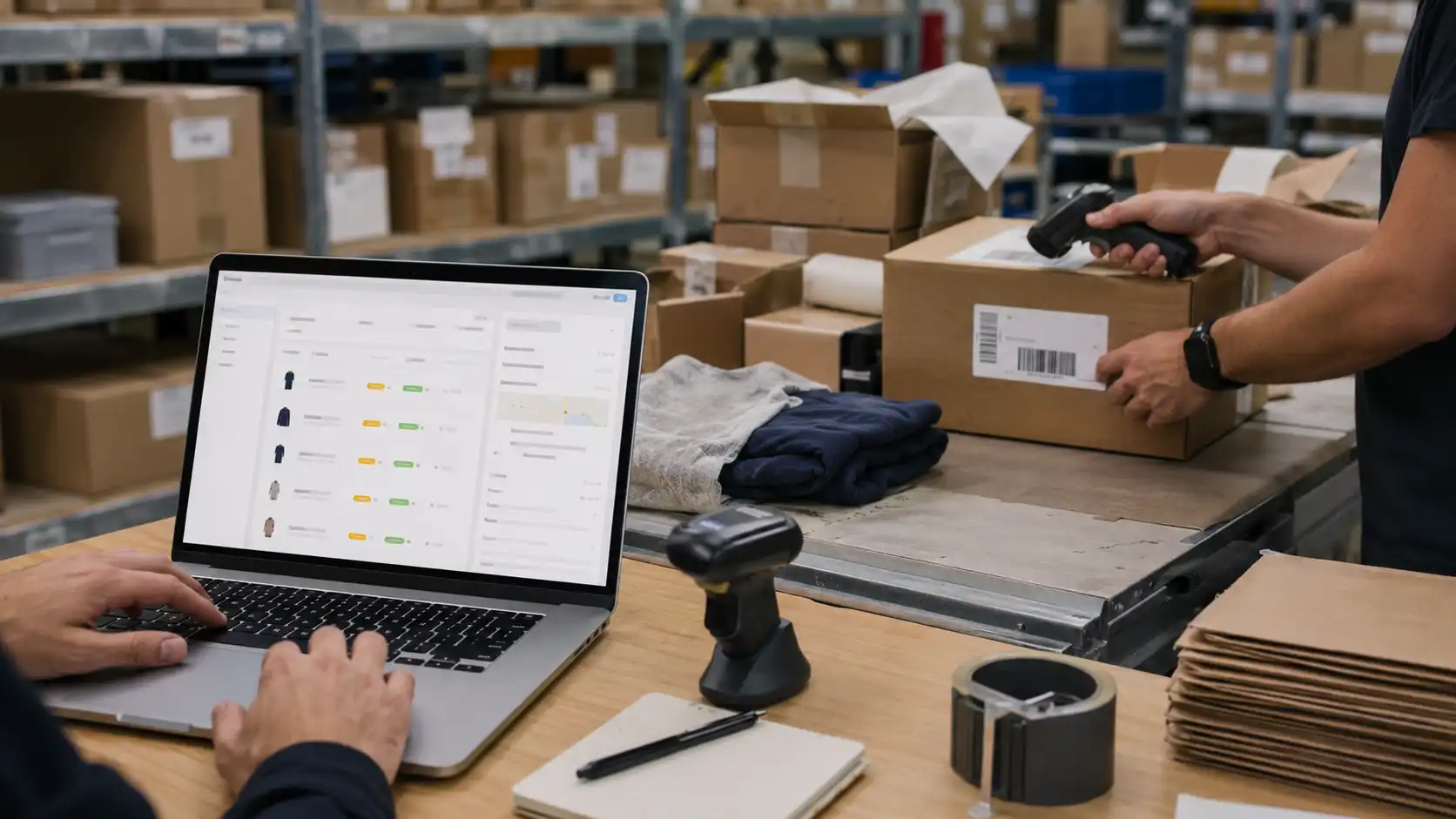
Shopify order fulfillment mistakes happen when an order looks correct inside Shopify, but the real fulfillment process breaks before the customer receives the package. The mistake may be a wrong SKU, incorrect size, missing accessory, delayed tracking update, partial fulfillment issue, bundle error, wrong label, or an order marked fulfilled before it is actually ready to ship.
For Shopify dropshipping sellers, these mistakes are more dangerous than they look. You usually do not inspect the product before the customer receives it. Shopify may show the correct order data, the app may sync successfully, and the supplier may still pack the wrong item.
This is where digital order flow and physical execution must be connected. A private Shopify dropshipping agent can help connect Shopify order data with real-world SKU verification, packing checks, dispatch control, and tracking write-back before fulfillment mistakes reach your customers.
This guide explains the most common Shopify order fulfillment mistakes, how to check them inside Shopify Admin, how to separate software errors from physical packing errors, and how to prevent the same problem from happening again when your store starts scaling.
What Are the Most Common Shopify Order Fulfillment Mistakes?
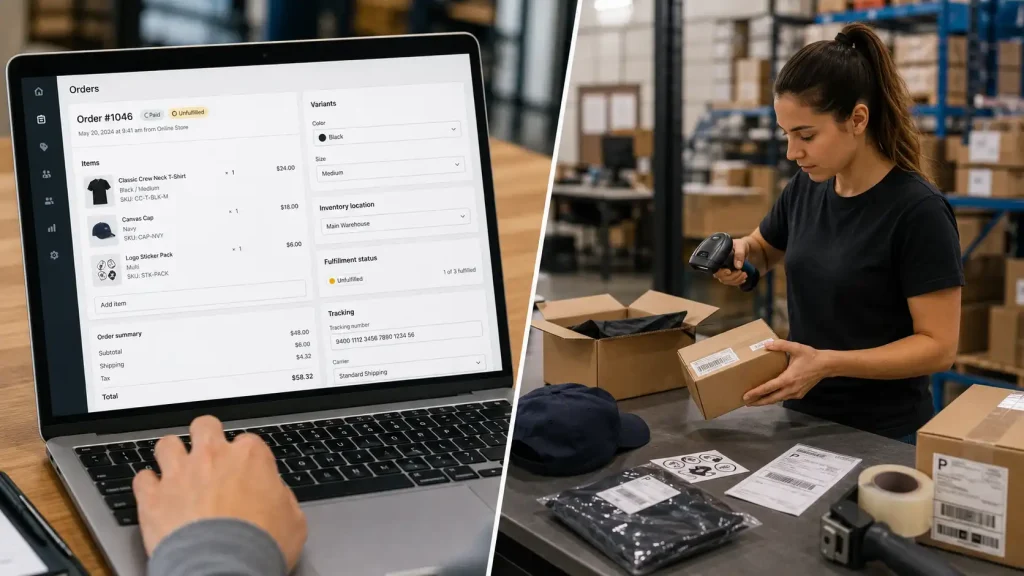
The most common Shopify order fulfillment mistakes include wrong SKU mapping, incorrect variants, missing accessories, inventory mismatches, premature fulfillment updates, tracking errors, partial fulfillment mistakes, bundle issues, and address or label problems.
These mistakes usually come from two different layers.
The first layer is the Shopify setup layer. This includes product variants, SKUs, inventory locations, fulfillment status, shipping settings, app sync, tracking write-back, and customer notifications.
The second layer is the physical execution layer. This includes supplier picking, warehouse packing, accessory checking, product condition, label matching, and final dispatch.
A seller cannot solve fulfillment problems by checking only one layer. If Shopify is configured incorrectly, the warehouse may ship exactly what the system tells it to ship, even if the customer ordered something else. If Shopify is configured correctly, the warehouse can still pick the wrong product or miss an accessory.
| Fulfillment Mistake | Where It Usually Starts | Customer Impact |
|---|---|---|
| Wrong SKU mapping | Shopify product setup or app mapping | Correct storefront order, wrong product shipped |
| Wrong size or color | Variant mapping or warehouse picking | Customer receives the wrong option |
| Missing accessory | Packing process | Product feels incomplete or unusable |
| Inventory mismatch | Supplier stock or Shopify inventory | Delayed dispatch or cancellation |
| Tracking not updating | App sync, carrier scan, or label timing | More “Where is my order?” tickets |
| Fulfilled too early | Fulfillment workflow | Customer receives shipping notice before movement |
| Partial fulfillment error | Multi-item order handling | Customer receives only part of the order |
| Bundle packing error | SKU setup or warehouse checklist | Bundle arrives incomplete |
| Address or label error | Customer address, label creation, or parcel matching | Delivery failure or wrong tracking |
The strongest fulfillment system treats each mistake as a traceable operational problem, not a random accident. The goal is to identify where the failure started and add a control point before the next order ships.
Key Takeaway: Shopify fulfillment mistakes usually come from either Shopify setup errors or physical warehouse execution errors, so both sides must be checked.
How To Check Shopify Fulfillment Mistakes Inside Shopify Admin
To check Shopify fulfillment mistakes, start inside Shopify Admin before blaming the supplier. Review the order status, fulfillment status, line items, variants, SKUs, inventory location, tracking number, app history, and address details.
Shopify uses fulfillment statuses such as unfulfilled, in progress, fulfilled, partially fulfilled, and other states to show where an order is in the process. These statuses help sellers understand whether an order is still waiting, being prepared, already fulfilled, or only partly fulfilled.
Start with the affected order.
Open the order and check whether it is unfulfilled, in progress, partially fulfilled, or fulfilled. If the order was marked fulfilled too early, the customer may receive a shipping notification before the package has real carrier movement.
Next, check the variant and SKU. Do not rely only on the product title. A product title can look correct while the SKU points to the wrong supplier item. This is especially risky for products with size, color, plug type, model, material, quantity, or bundle options.
Then check the fulfillment location. Shopify allows sellers to manage fulfillment locations and change locations for unfulfilled or in-progress items when needed. If an order is assigned to the wrong location, the wrong supplier or warehouse may receive it.
After that, check tracking. Confirm the tracking number, carrier, fulfillment time, and customer notification. Shopify’s order status page lets customers view shipment updates after tracking is added, so inaccurate or premature tracking directly affects customer trust.
Also check whether the order is partially fulfilled. Multi-item orders can create confusion when one item ships and another remains pending. Make sure every line item, quantity, and tracking number matches the real shipment.
Finally, check app sync. Fulfillment failed errors can happen when Shopify data no longer matches what the app expects. For example, Ship&co’s Shopify troubleshooting guide explains that some failed app fulfillments may require sellers to manually add the tracking number in Shopify to complete the fulfillment.
Common app-related issues include:
- the order was edited after syncing
- the item quantity changed
- the fulfillment location changed
- tracking could not be written back
- the carrier name did not match
- the line item was already fulfilled
- the app still holds an older version of the order
Shopify setup mistakes can also create fulfillment errors before the supplier touches the order. Watch for duplicate SKUs, disabled inventory tracking, “continue selling when out of stock,” incorrect fulfillment locations, wrong shipping profiles, products not treated as physical items, and automatic fulfillment settings that update orders too early.
Key Takeaway: Before fixing the warehouse process, check Shopify order status, SKU mapping, fulfillment location, tracking, partial fulfillment, app sync, and address details.
Why Shopify Order Sync Does Not Guarantee Physical Packing Accuracy
Shopify order sync only confirms that order data moved from your store into another system. It does not prove that the correct physical product was picked, checked, packed, labeled, and shipped.
This is the mistake many dropshipping sellers make. They assume that if Shopify and the fulfillment app are connected, the order is safe. In reality, many customer-facing mistakes happen after the order leaves Shopify.
Shopify may show the correct:
- customer name
- shipping address
- product title
- variant
- SKU
- order total
- fulfillment request
- tracking field
But the supplier or warehouse can still pack:
- the wrong color
- the wrong size
- the wrong model
- the wrong plug type
- a missing cable
- an incomplete bundle
- a damaged unit
- a parcel with the wrong label
This does not mean Shopify apps are useless. Apps are valuable for order syncing, inventory updates, fulfillment requests, automation, and tracking write-back. The limitation is simple: software cannot visually inspect a product inside a package.
A fulfillment app can confirm that data was transferred. It cannot confirm whether the warehouse picked the updated model instead of the old model. It cannot count accessories. It cannot compare the label against the physical parcel. It cannot check whether the bundle is complete before dispatch.
That is why physical packing accuracy matters. Shopify manages the order workflow, but the customer only judges what arrives at the door.
That is why sellers should treat Shopify sync as the starting point, not the final control point. A pre-dispatch dropshipping quality control process can check the physical item, variant, accessories, packaging, labels, and order-readiness before the parcel is released.
Key Takeaway: Shopify can organize fulfillment data, but it cannot physically verify product accuracy before dispatch.
How Wrong SKUs and Variant Mapping Errors Cause Repeat Mistakes
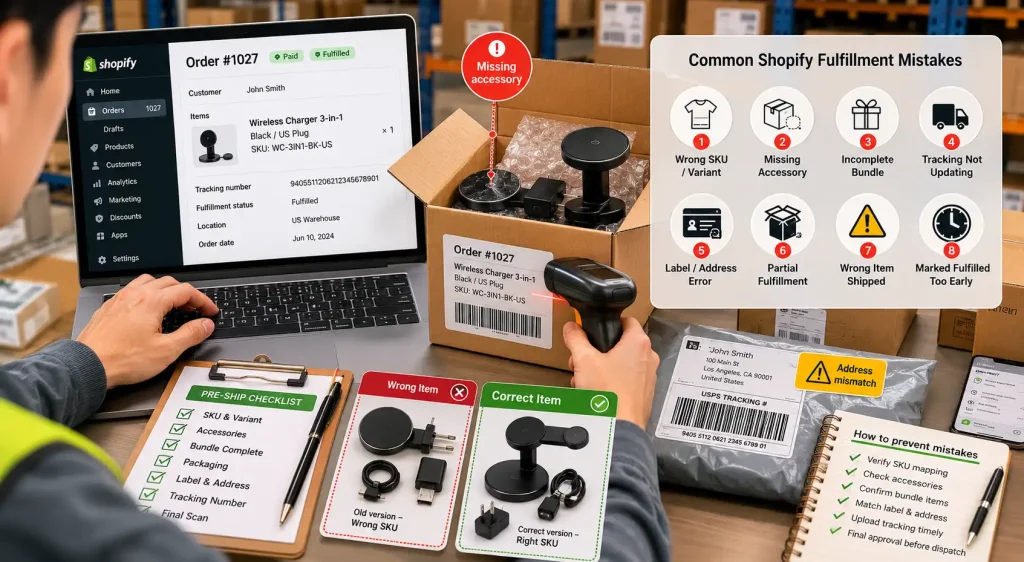
Wrong SKU and variant mapping errors are some of the most dangerous Shopify order fulfillment mistakes because they repeat automatically.
A single bad mapping relationship can create dozens of wrong shipments before the seller notices the pattern. The storefront may look correct to the customer, but the backend SKU may point to the wrong supplier item.
For example:
- customer chooses black, supplier receives white
- customer chooses XL, supplier receives L
- customer orders a US plug, supplier ships EU plug
- customer orders a two-piece bundle, supplier sees one item
- product page shows the updated version, supplier picks the old version
These mistakes often happen after product edits. A seller may change images, variant names, descriptions, or supplier links without checking whether the SKU relationship still matches the physical product.
Before scaling a product, test the full order path:
- Place a test order.
- Confirm the Shopify variant.
- Confirm the Shopify SKU.
- Confirm the supplier SKU.
- Confirm the product image received by the supplier.
- Confirm the physical product label.
- Confirm the packing requirement.
- Confirm the tracking write-back process.
Real Case: When the Shopify SKU Was Correct but the Supplier Picked the Old Version
One Shopify seller selling a rechargeable product started scaling from about 80 orders per day to 210 orders per day after a paid ad campaign began performing well. At first, the Shopify order data looked correct: the product title, selected variant, and Shopify SKU all matched the updated version of the product.
However, customer complaints started to appear after several days. Buyers said the product they received looked similar, but the charging port and accessory set were from the older version.
The issue was not the Shopify product page. It was the supplier-side SKU relationship. The Shopify SKU had been updated, but the supplier’s internal picking label still pointed to the previous model. Warehouse workers were not choosing the wrong item randomly. They were following an outdated supplier SKU that no longer matched the version shown in the Shopify store.
The fix required four steps:
- Pause scaling for the affected variant.
- Compare the Shopify SKU, supplier SKU, product image, and model code.
- Update the supplier picking label and internal SKU map.
- Require packing photos showing the model code and accessory set before dispatch.
After the workflow was corrected, the seller no longer relied only on the Shopify product title. Every order for that product was checked against the model code, accessory list, and supplier SKU before tracking was written back to Shopify.
Lesson: Shopify data accuracy does not guarantee supplier-side picking accuracy. The SKU relationship must be verified in both the digital system and the physical warehouse.e dangerous because one backend setup mistake can create repeated wrong shipments.
Why Missing Accessories and Incomplete Bundles Hurt Margins
Missing accessories and incomplete bundles hurt dropshipping margins because customers often treat the entire order as failed, even if the main product arrived.
For products like electronics, beauty devices, fitness items, home improvement products, pet products, and hobby accessories, one missing cable, adapter, screw, refill, manual, remote, or small part can make the product feel unusable.
The missing part may be cheap. The correction is not.
If a customer needs a replacement accessory, the seller may need to pay extra shipping, offer a partial refund, send a replacement, or handle repeated support messages. In cross-border dropshipping, shipping one small missing item can cost more than the item itself.
Bundles create a similar problem. A bundle is not fulfilled just because one SKU was picked. It is fulfilled only when every promised component is inside the parcel or clearly shipped separately with the customer informed.
A bundle packing checklist should include:
- main product
- all bundle components
- required accessories
- plug type or adapter
- manual or instruction card
- spare parts
- protective packaging
- branded insert, if used
- final parcel label
The warehouse should not ask only “Is the product present?” It should ask “Is the full customer promise inside this package?”
For products with many small parts, require a simple photo record before sealing. The photo does not need to be complicated. It should show the product, accessories, and order label clearly enough to verify completeness.
Key Takeaway: Missing accessories and incomplete bundles create refund pressure because the customer experiences the order as incomplete.
Why Tracking, Address, and Label Errors Create Customer Complaints
Tracking, address, and label errors create customer complaints because customers use delivery information to decide whether your store is reliable.
A product can be correct and still create a bad fulfillment experience if the tracking number is wrong, the carrier is unclear, the address is incomplete, or the parcel label is attached to the wrong package.
Common tracking mistakes include:
- tracking uploaded before carrier pickup
- wrong carrier selected
- tracking entered incorrectly
- tracking belongs to another order
- tracking written back too late
- package not scanned for several days
- order marked fulfilled before dispatch
- multiple packages not explained clearly
Many tracking complaints start before transit, when the label is created but the parcel has not received a real carrier scan. A fast shipping dropshipping workflow should control processing, label matching, carrier handoff, and tracking write-back together, not only chase a shorter transit estimate.
Address issues create a different type of problem. Shopify has address validation workflows for orders with shipping address issues, and sellers can review address problems in the order’s customer section.
Common address and label problems include:
- missing apartment or unit number
- incorrect postal code
- invalid phone number
- address format not accepted by the carrier
- wrong customer label
- label attached to the wrong parcel
- tracking number matched to the wrong order
Shopify also notes that address format warnings can appear when the address format is valid but has no match in the carrier’s database. That usually means the seller should review the address before buying or using the shipping label.
For dropshipping sellers, label matching is especially important because orders may be processed in batches. If the warehouse prints several labels and packs several similar products at the same time, a label mix-up can send the right product to the wrong customer.
A better tracking and label workflow is:
- Confirm the package is packed.
- Match the Shopify order number to the parcel.
- Match the customer name and address.
- Confirm the carrier and service line.
- Upload tracking only after the label is assigned correctly.
- Monitor abnormal tracking delays.
Key Takeaway: Fulfillment accuracy is not only about the right product. The tracking number, address, label, and customer order must also match.
How To Build a Dual-Verification Fulfillment Process
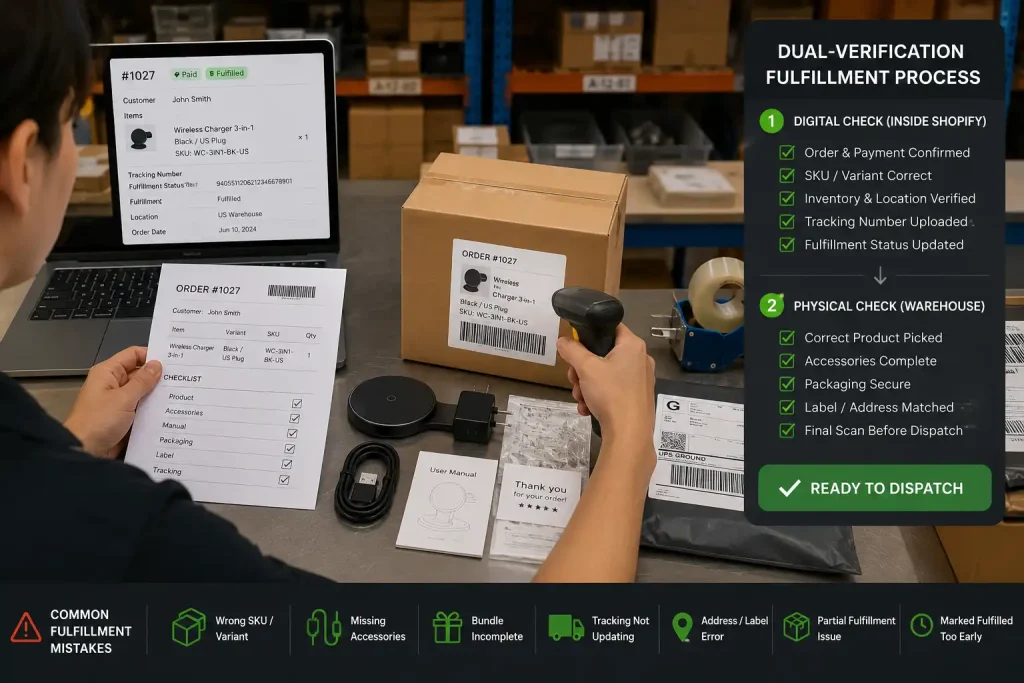
A dual-verification fulfillment process uses two separate checks before a Shopify order is shipped.
The first check confirms that the correct item was picked. The second check confirms that the item, variant, accessories, packaging, label, and tracking match the Shopify order before final dispatch.
A practical dual-verification process can be simple:
| Stage | What To Check | Purpose |
|---|---|---|
| Order review | Shopify order, item, quantity, variant | Confirm the customer request |
| SKU check | Shopify SKU and supplier SKU | Avoid wrong product |
| Variant check | Size, color, model, plug type | Avoid wrong option |
| Accessory check | Required parts and bundle items | Avoid incomplete orders |
| Packaging check | Protection, insert, parcel requirement | Avoid damage or missing branding |
| Label check | Customer name, address, order number | Avoid wrong delivery |
| Tracking check | Carrier and tracking number | Avoid tracking confusion |
| Final approval | Parcel ready for dispatch | Stop mistakes before shipment |
This does not need to slow fulfillment dramatically. The key is accountability. One person picks the order. Another person approves the package before dispatch.
For simple products, the checklist can be short. For high-risk products, it should be more detailed. High-risk products include items with many variants, electronic accessories, apparel sizes, fragile packaging, branded inserts, bundles, or products that often generate customer questions.
The goal is not to create unnecessary paperwork. The goal is to make mistakes visible before they become public complaints, refunds, or replacement shipments.
Key Takeaway: Dual verification reduces fulfillment mistakes by separating picking from final approval.
How To Fix a Shopify Fulfillment Mistake After It Happens
To fix a Shopify fulfillment mistake, identify the exact failure point first, then solve both the customer issue and the backend process.
Do not start by guessing. A wrong item complaint can come from Shopify setup, supplier SKU mapping, app sync, warehouse picking, label mismatch, tracking error, or customer address issues.
Use this diagnostic table before choosing the fix:
| Customer Complaint | Check in Shopify | Check Physically | Best Fix |
|---|---|---|---|
| Wrong item received | Variant, SKU, supplier SKU, app mapping | Picked SKU, product label, packing photo | Correct mapping, reship right item, test next order |
| Wrong size or color | Variant option, SKU, product image | Size label, color, model tag | Update mapping, add final visual check |
| Missing accessory | Product description, bundle SKU, order note | Accessory checklist, packing photo | Reship missing part or offer fair partial refund |
| Tracking not moving | Carrier, tracking number, fulfillment time | Pickup scan, label batch, dispatch record | Reupload tracking, check pickup, notify customer |
| Fulfilled too early | Fulfillment status, timeline, notification settings | Actual dispatch status, label creation time | Delay fulfillment update until parcel is ready |
| Partial order missing | Fulfillment status, line items, quantities | Split shipment records, supplier handoff | Add second tracking and explain split shipment |
| Bundle incomplete | Bundle setup, line item structure, SKU mapping | Bundle checklist, packed components | Create bundle SOP, reship missing item |
| Delivery failed | Address, postal code, customer phone | Label, carrier exception, returned parcel | Confirm address, correct label, reship if needed |
| Wrong tracking shown | Tracking number, carrier, order timeline | Label-to-order match, dispatch batch | Remove wrong tracking, upload correct tracking |
| Delayed after scaling ads | Inventory quantity, location, app sync | Dispatchable stock, supplier capacity | Pause scaling, confirm stock, create buffer |
After identifying the root cause, communicate with the customer clearly. Do not hide behind generic templates. Explain the issue briefly and offer the next step: replacement, missing part shipment, corrected tracking, partial refund, full refund, or reshipment.
Then fix the process. If the SKU was wrong, correct the mapping. If the supplier picked the wrong version, update the supplier SKU relationship. If tracking was uploaded too early, change the fulfillment timing. If bundles were incomplete, create a bundle checklist. If labels were mismatched, add a final label verification step.
A fulfillment mistake is not fully fixed when one customer receives a replacement. It is fixed when the same error becomes much harder to repeat.
Key Takeaway: Fix the customer problem first, then remove the root cause from Shopify, the app, or the physical packing workflow.
When Should Shopify Sellers Use a Private Dropshipping Agent?
Shopify sellers should consider using a private dropshipping agent when fulfillment mistakes become repeated, expensive, or difficult to control through apps and suppliers alone.
This does not mean every beginner needs an agent immediately. If a store is testing products with very low order volume, simple supplier workflows may be enough.
But as order volume grows, small backend mistakes become expensive. You may need a more controlled execution layer if:
- wrong variants happen repeatedly
- suppliers miss accessories
- tracking updates create support tickets
- bundles are hard to manage
- suppliers ship items separately without warning
- winning products sell faster than stock updates
- SKU mapping needs manual checking
- branded inserts must be added consistently
- you are scaling ads and cannot afford backend errors
At that stage, the problem is no longer just “how do I send the order?” The problem becomes “how do I make sure every order is physically correct before the customer receives it?”
A private dropshipping agent is useful when Shopify sellers need supplier coordination, SKU verification, product checks, accessory confirmation, packing control, dispatch timing, and tracking write-back in one execution workflow.
If your Shopify orders are already scaling and fulfillment mistakes are becoming harder to control manually, you can submit your store details through RuntoDropship’s private agent app so our team can review your order volume, product type, SKU complexity, and fulfillment requirements.
Key Takeaway: A private dropshipping agent is most useful when Shopify sellers need physical fulfillment control, not only order automation.
How To Prevent Fulfillment Mistakes Before Scaling Ads
Before scaling ads, Shopify sellers should audit fulfillment accuracy because higher order volume multiplies small mistakes.
A fulfillment process that works at five orders per day may break at fifty orders per day. More orders create more variants, more tracking events, more supplier coordination, more address issues, and less time to manually catch every error.
Before increasing ad spend, check:
- Are all active variants mapped to the correct supplier SKUs?
- Have you tested the full order flow?
- Are winning variants physically available?
- Is inventory tracked at the variant level?
- Is “continue selling when out of stock” safe for this product?
- Does the supplier understand the packing requirements?
- Is there an accessory checklist?
- Are bundles packed as complete sets?
- Are tracking numbers uploaded accurately?
- Are split shipments explained clearly?
- Are address issues reviewed before dispatch?
- Is someone accountable for final parcel approval?
The goal is not to slow your store down. The goal is to create a fulfillment system that can handle more orders without creating more mistakes.
If you scale ads before the backend is ready, fulfillment errors multiply quietly. By the time customer complaints appear, the damage may already include replacement costs, support backlog, lower repeat purchase trust, and wasted ad spend.
Key Takeaway: Shopify sellers should verify fulfillment accuracy before scaling traffic, because operational mistakes multiply with volume.
Final Thoughts
Shopify order fulfillment mistakes are not always caused by bad products or careless customers. Many happen because Shopify data, supplier systems, fulfillment apps, warehouse packing, tracking updates, addresses, and labels do not match each other perfectly.
The best prevention system checks both sides of fulfillment.
Inside Shopify, check order status, fulfillment status, SKU mapping, inventory, location, tracking, partial fulfillment, app sync, and address details.
In the physical workflow, check the picked product, variant, accessories, bundle components, packaging, label, and final dispatch record.
This is the difference between basic order automation and reliable fulfillment execution. Shopify can manage the order workflow, but the customer judges the package that arrives.
For growing Shopify dropshipping sellers, fixing fulfillment mistakes before scaling is not an optional detail. It protects margins, reduces support pressure, and creates a more reliable delivery experience for customers.
FAQ
What is the most common Shopify order fulfillment mistake?
The most common mistake is a mismatch between Shopify order data and physical execution. This can include wrong SKU mapping, wrong variants, missing accessories, tracking errors, partial fulfillment issues, or orders marked fulfilled too early.
Why does Shopify show an order as fulfilled when tracking has no movement?
This can happen when tracking is uploaded before carrier pickup, the wrong carrier is selected, the package has not been scanned, or the order is marked fulfilled before dispatch is complete.
Can Shopify apps prevent wrong items from being shipped?
Shopify apps can sync orders, inventory, fulfillment requests, and tracking data, but they cannot physically inspect products inside packages. Wrong items, missing accessories, and incomplete bundles still require human verification.
How do I prevent wrong Shopify variants from being fulfilled?
Check that each Shopify variant maps to the correct Shopify SKU and supplier SKU. For products with size, color, plug type, model, or bundle options, run a test order before scaling ads.
What should I check when a Shopify fulfillment app fails?
Check whether the order was edited after sync, the quantity changed, the fulfillment location changed, tracking could not be written back, or the line item was already fulfilled.
How can I reduce Shopify fulfillment mistakes before scaling?
Audit SKU mapping, inventory, fulfillment location, tracking workflow, address validation, supplier packing requirements, bundle checklists, and final label verification before increasing order volume.
Why does Shopify say fulfillment failed?
Shopify may show fulfillment failed when the order was edited after sync, the fulfillment location changed, tracking cannot be written back, the line item was already fulfilled, or the connected app still holds older order data.